
How Split Log works
Split Log keeps track of who paid what in a group and who owes whom. This page explains the rules behind the numbers, and how Split Log works together with Wallet Log.
Groups and members
- Every group has its own currency. Balances and payments in the group are always shown in it.
- You can invite people with a code or a link. An invite code is valid for 7 days. People who join use their own account and add their own expenses.
- You can also add someone by name, without an account — for example a friend who doesn’t use the app. Later you can send an invite for that person, and when they join, they take over that place in the group, with all its expenses.
Adding an expense and splitting it
Each expense has a title, a category, an amount, a currency, a date, the person who paid and a split. There are four ways to split:
| Method | How it works |
|---|---|
| Equally | the amount is divided evenly between the chosen people |
| Percent | each person gets a percentage; together they must add up to 100% |
| Amounts | you enter each person’s amount; together they must equal the expense |
| Shares | each person gets a number of shares, e.g. 2 for a couple and 1 for a single person |
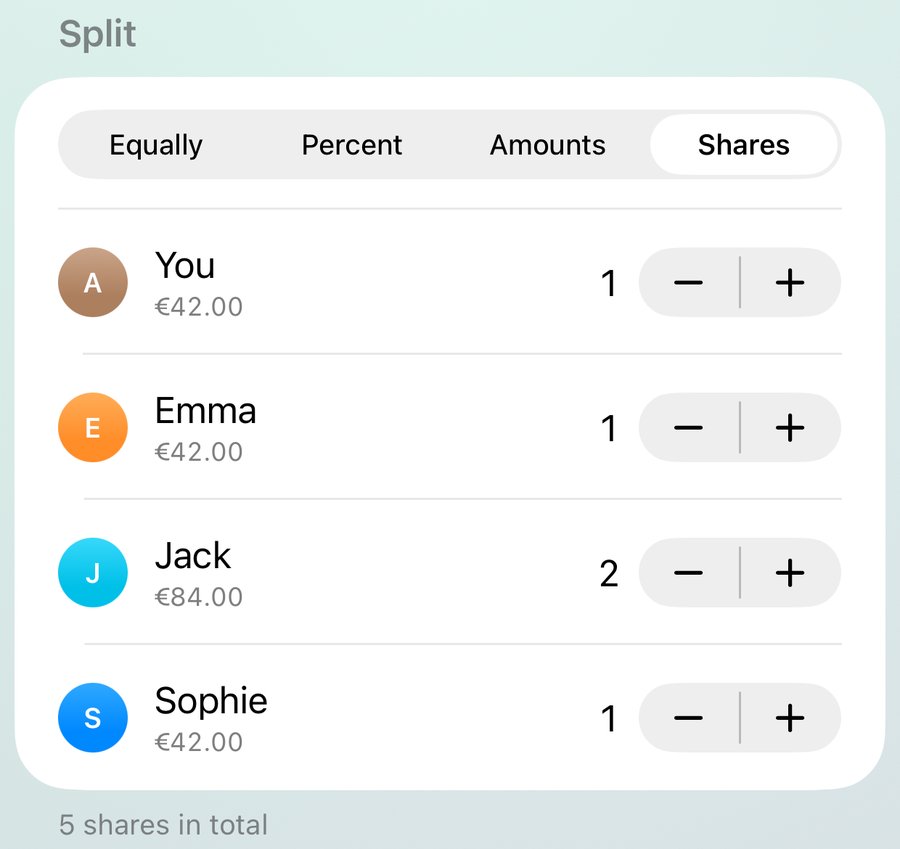
- Down to the cent. Shares are always rounded to the smallest unit of the currency, and they always add up exactly to the expense. Leftover cents go to the people whose exact share was closest to rounding up. For example 100.00 split equally between three people is 33.34 + 33.33 + 33.33.
- Default split. A group can have a default split (Equally, Percent or Shares). Every new expense starts with it, and you can change it for a single expense.
Currencies
- An expense can be in any currency, not just the group’s.
- It is converted to the group currency with the European Central Bank exchange rate from the day of the expense (the latest rate published on or before that day).
- The rate is saved with the expense, so later changes in rates don’t change old balances. When you edit an expense, the saved rate stays as long as the currency and the date stay the same.
Balances
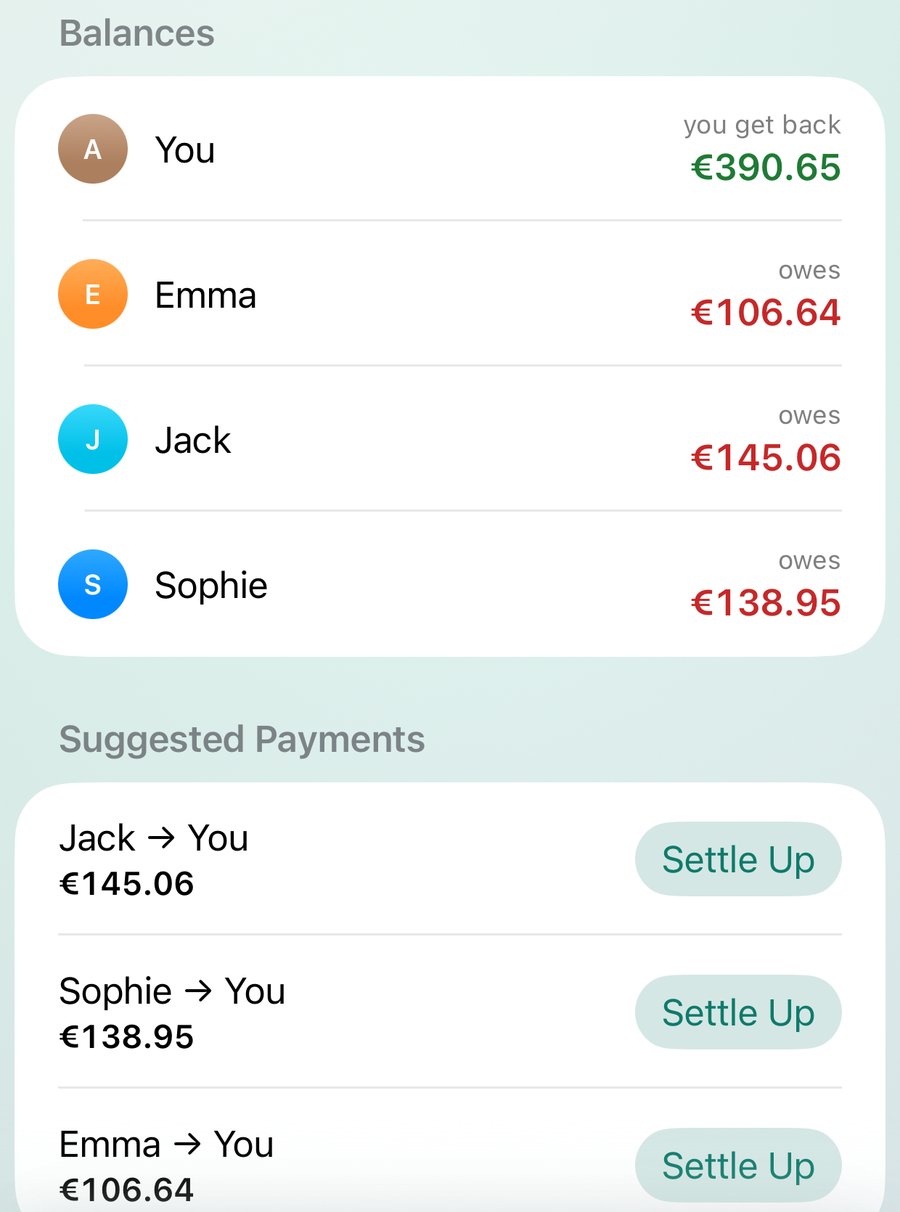
Each person’s balance is what they paid minus their shares of all the group’s expenses, plus the payments they made, minus the payments they received — all in the group currency.
- A positive balance means the person gets money back, a negative one means they owe money.
- The balances in a group always add up to zero: what some people owe is exactly what others get back.
Example. Anna pays 90 for dinner for three, split equally. Anna’s balance is +60 (paid 90, her share is 30), and each of the other two is −30.
Settling up
- Split Log suggests payments that settle the whole group: it repeatedly matches the person who owes the most with the person who gets back the most. For a group of n people that takes at most n − 1 payments.
- When someone pays another person back, record it with Settle Up. Payments are always in the group currency, and they change the balances straight away.
Archiving, leaving and deleting
- Archive — once everyone’s balance is zero, the group can be archived for all members. An archived group is read-only. Any member can bring it back.
- Leave — you can leave a group when your own balance is zero.
- Delete — only the person who created the group can delete it, and only when everyone’s balance is zero. It disappears for all members.
Recurring expenses (Premium)
- Rent, subscriptions or bills can be set to repeat daily, weekly, monthly or yearly. A monthly expense on the 31st falls on the last day of shorter months.
- Each occurrence is added for the whole group when anyone in the group opens the app on or after its day — including the ones missed while nobody opened it (up to 60 at a time).
- Creating, editing and resuming a recurring expense needs Premium. Pausing and deleting works for everyone, so an expired subscription can still stop what it started. Running recurring expenses keep being added either way.
- Optional reminders are local notifications on your iPhone.
Free and Premium
Splitting, balances, settling up and stats are free, with no limits.
- Free: 2 new expenses a day with no waiting. From the third one, a short 10-second screen appears before the form. Only expenses you add yourself count — not edits, payments or recurring expenses.
- Premium: recurring expenses, no waiting before adding an expense, and Wallet Log Premium included. New subscribers get one week free.
- One Premium for both apps. Split Log and Wallet Log use the same account, so Premium bought in either app unlocks Premium in both.
Split Log and Wallet Log
Split Log tracks what a group owes. Wallet Log tracks your own spending. With Premium (from either app), your share of every group expense goes to Wallet Log, so your budget shows what you really spent.
What gets sent
- For each expense you are part of, Wallet Log gets your share — not the whole amount — in the expense’s currency, with its date. It doesn’t matter who paid: your share is what you spent. Who owes whom is settled in Split Log.
- Payments between members (Settle Up) are not sent — they move money that’s already been counted.
- Both apps must be signed in to the same account.
Where it shows up
Your shares appear in Wallet Log under Notifications (the bell), in the To do section — for example “Your share €30.00 of €90.00”, with who paid and the date underneath.
- Add opens the regular expense form, already filled in: the amount (your share), the currency, the date and a note like “Split Log: Lisbon – Dinner”. You choose the category and the account, then save. Wallet Log converts the currency with its own exchange rates, like any other expense.
- Skip removes the item without adding anything.
- Expenses added this way don’t count towards Wallet Log’s free daily limit.
When something changes in Split Log
- The expense was edited after you added it — it comes back as Changed in Split Log: Update opens your Wallet Log expense with the new amount and date, Ignore leaves it as it is.
- The expense was deleted, or you no longer have a share in it — it comes back as Deleted in Split Log: Delete expense removes it from Wallet Log, Keep leaves it.
- An expense deleted in Split Log before you added it simply disappears from the list.
Good to know
- Without Premium, your shares still collect and Wallet Log shows how many are waiting. Once you have Premium, the whole list is there, including the older ones.
- The list is kept on the server, so iPhone and iPad show the same items. If a share gets added on two devices at once, the second copy is removed automatically.
- You can hide this section in Wallet Log’s notification settings (Expenses from Split Log). This applies only to that device.