
How Wallet Log works
This page explains the rules behind the numbers in Wallet Log — how balances, categories and budgets are calculated — and how recurring transactions, notifications, Premium and the Apple Pay shortcut work.
Accounts and balances
- Each account has its own currency. One account is the default — it can’t be archived or deleted, and there is always at least one active account.
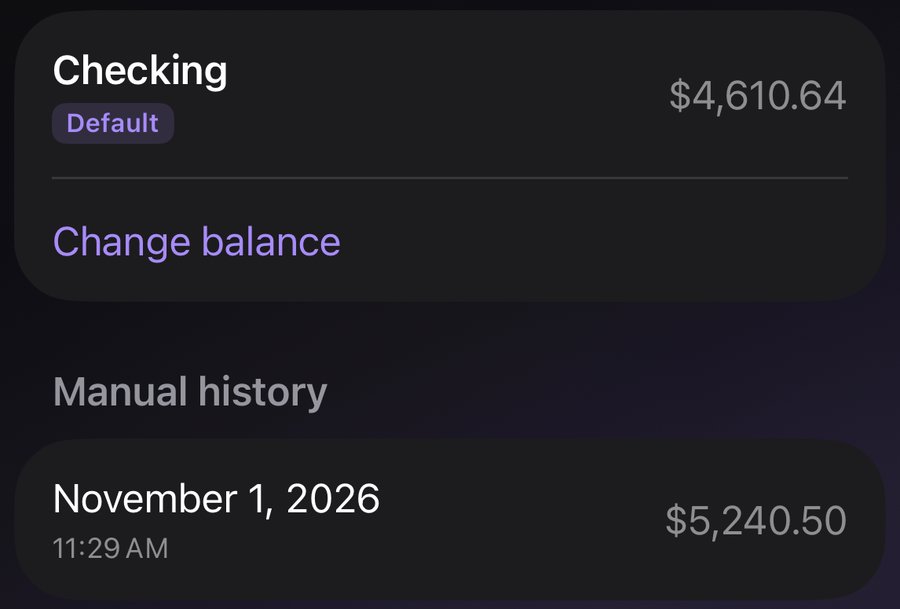
- An account’s balance starts from the balance you set with Change balance: an amount and an effective date. From that day on, every income on the account adds to the balance and every expense subtracts from it, in date order.
- Setting the balance again on a later date starts over from the new value — entries dated before it no longer affect the balance after it. Every manual change is kept in the account’s Manual history.
- An entry in the account’s currency counts with its exact amount. An entry in another currency is converted with the exchange rate saved with the entry.
- Entries without an account count towards the default account.
Example. You set the balance to 1,000 on 1 November. On 2 November you spend 50, on 3 November you receive 200 — the balance is 1,150. If on 10 November you set it to 1,100, the balance continues from 1,100.
Entries and categories
- Every entry is an expense or an income, with a category and a subcategory.
- One entry can be in several categories at once (one subcategory in each). This isn’t a split: each category gets the full amount, while in the overall totals the entry counts only once.
- Because of that, category amounts can add up to more than your total spending — the same money is shown in every category it belongs to.
Example. 100 for fuel on a business trip, put in both Car → Fuel and Work → Travel. Car shows 100, Work shows 100, and your total expenses grow by 100, not 200.
Budgets
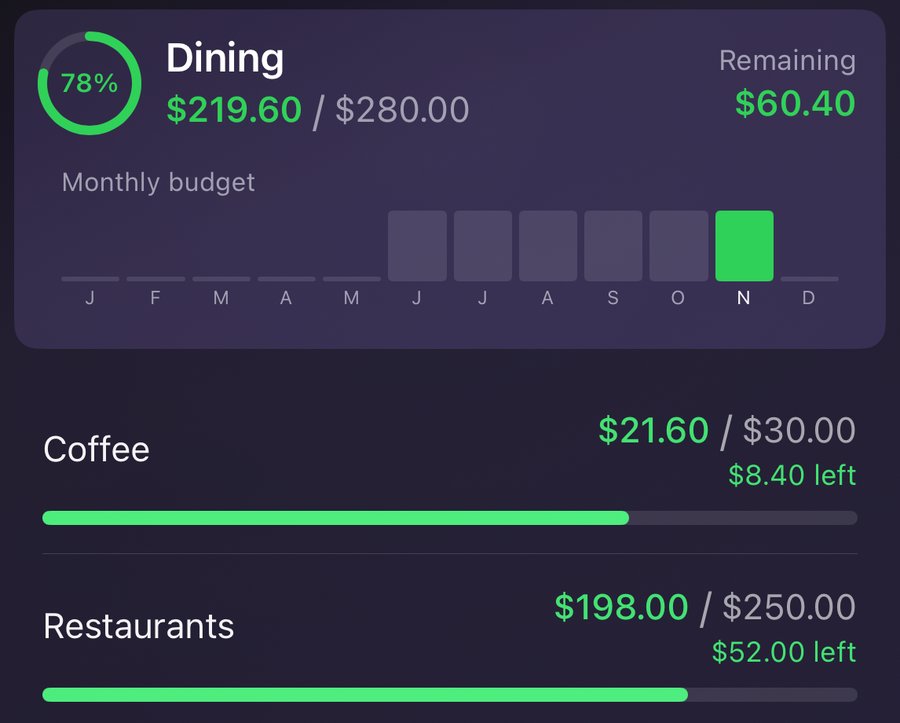
- A budget is a monthly amount for a subcategory, set separately for each month. Fill rest of year copies a month’s amount to all the following months of that year.
- A category’s budget is the sum of its subcategories’ budgets, and it is compared with everything spent in the category — including subcategories that have no budget. A subcategory can be within its own budget while the category as a whole is over.
- Spending is counted the same way as in categories: an entry in several categories counts in full in each of them.
- Colours in Budget vs Spending:
- expenses — up to 100% green, 100–105% orange, above 105% red;
- income budgets work as targets — 100% or more green, 95–100% orange, below 95% red.
Recurring transactions
- A recurring transaction repeats daily, weekly, monthly or yearly, from a start date, optionally until an end date or a set number of times. For monthly ones you can choose the last day of the month. You can pause a recurring transaction at any time.
- Due entries are added when you open the app — including the ones missed while it was closed. Each occurrence is created only once, even when you use Wallet Log on several devices.
- Each one is added with its own amount, currency and categories, at the exchange rate from the moment it’s added.
- When an entry is added you get an iOS notification at the time you chose (9:00 if no time is set), and it also shows up in Notifications in the app.
Notifications
The Notifications screen (the bell) collects what happened in your finances:
- Recurring transactions that were added for you.
- Budget alerts for the current month, for expense budgets only: one when spending reaches 80%, another when it goes over 100% (spending exactly the budget still counts as 80%). Categories and subcategories get separate alerts.
- A monthly summary of last month’s spending, on the first day of the new month.
- Expenses from Split Log waiting to be added — see Split Log below.
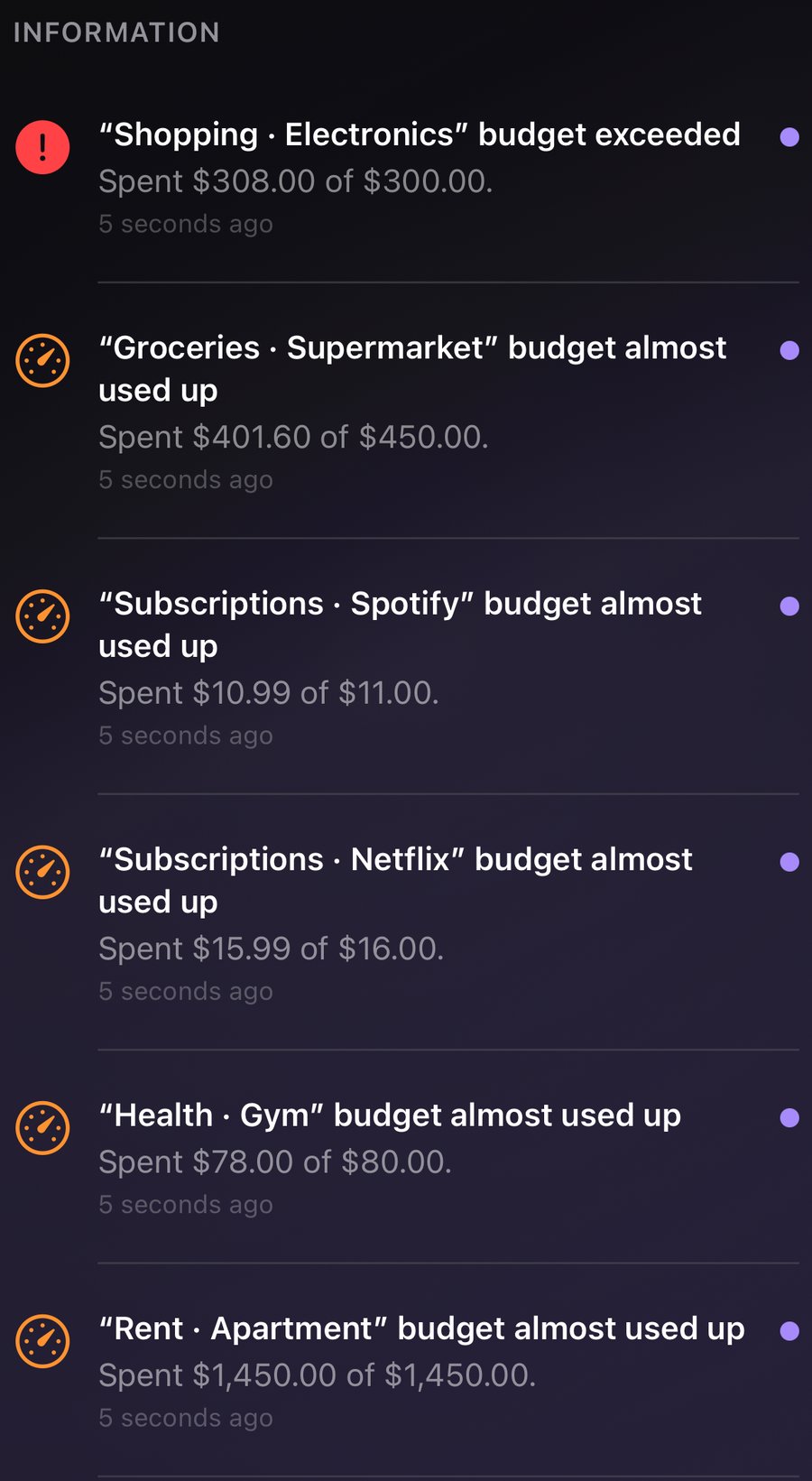
Items older than 60 days disappear. What you’ve read is synced between your devices. In the settings you can turn off the whole Notifications centre (the bell disappears) or each type separately — those switches apply only to the device you change them on.
Free and Premium
- Free: 3 entries a day, up to 6 categories and 16 subcategories, up to 2 recurring transactions. Entries you add on iPhone, iPad or Apple Watch count towards the daily limit; recurring entries and expenses added from Split Log don’t.
- Premium: no limits on entries, categories and recurring transactions, plus Split Log Premium included.
- One Premium for two apps. Wallet Log and Split Log use the same account, so Premium bought in either app unlocks Premium in both.
Split Log
With Premium, your share of every Split Log group expense shows up in Wallet Log under Notifications → To do, ready to add with one tap. How shares are sent, and what happens when an expense changes in Split Log, is explained in How Split Log works.
Apple Pay and Shortcuts
You can have Wallet Log open with the amount filled in after every Apple Pay payment:
- Open Shortcuts → Automation → New Automation and choose Wallet.
- Leave Any Card or pick specific cards. To have Wallet Log open on its own, turn off Confirm Before Run.
- Add the Wallet Log action Add Expense and set its amount to Amount from the transaction.
- Turn on Settings → Wallet → Mobile Data, or the automation won’t run.
- The amount is added in your default currency. You still pick the category and save the entry yourself, and it counts towards the free daily limit like any other entry.
- The same Add Expense action works in your own shortcuts and with Siri.